
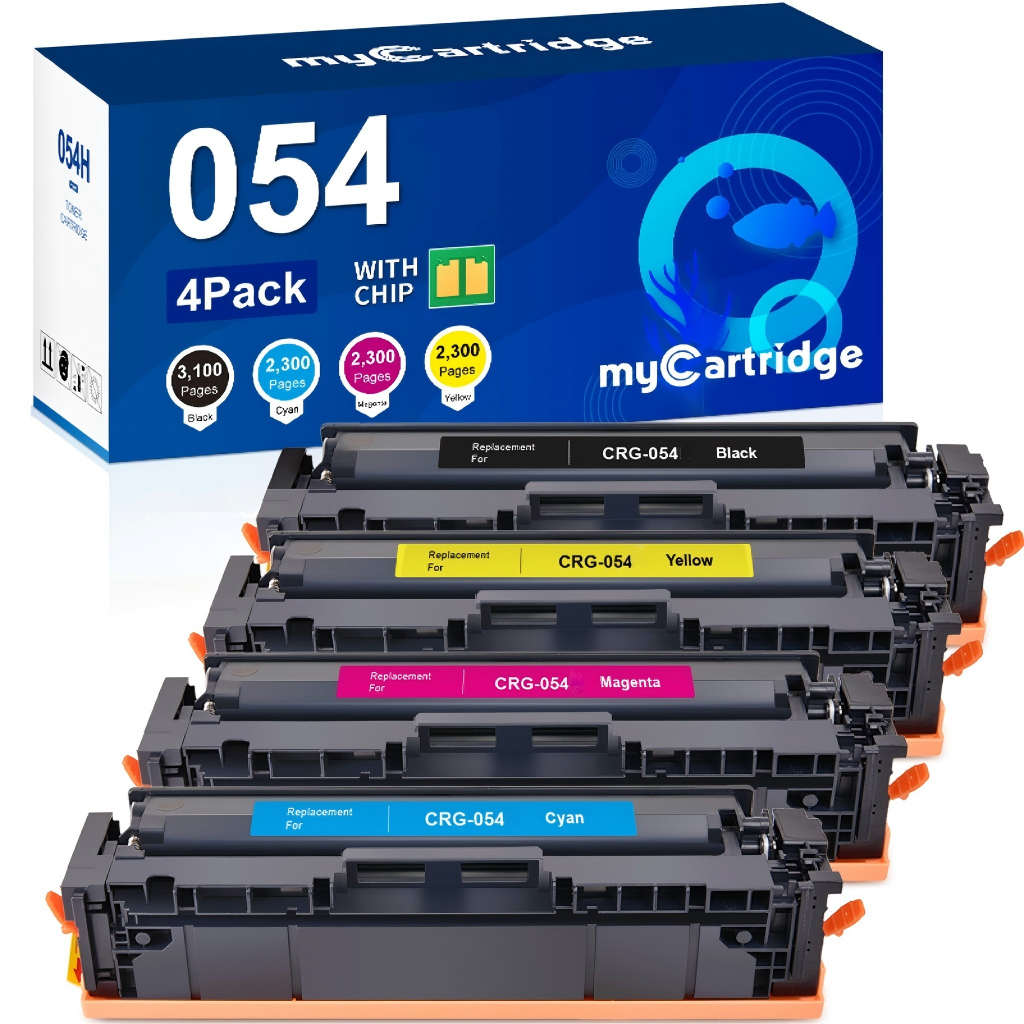

For imageCLASS MF644Cdw MF642Cdw LBP622Cdw LBP623Cdw
You May Also Like
Limited-time offer: use code FLASHSALE and save extra 35%


For MFC-L2710DW MFC-L2750DW HL-L2370DW HL-L2395DW DCP-L2550DW


For Color LaserJet Pro 4201dw 4301fdw MFP 4301fdn
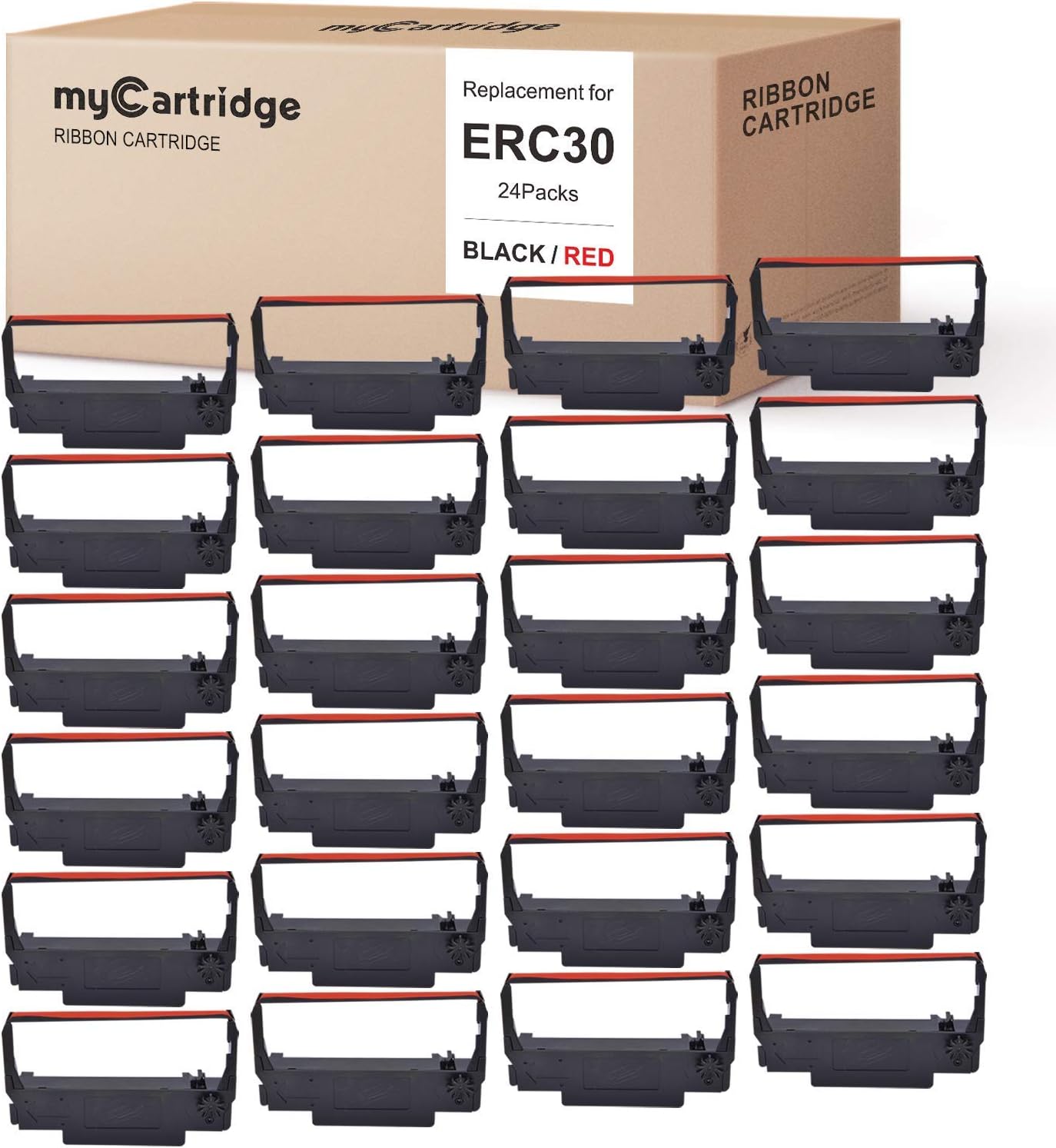
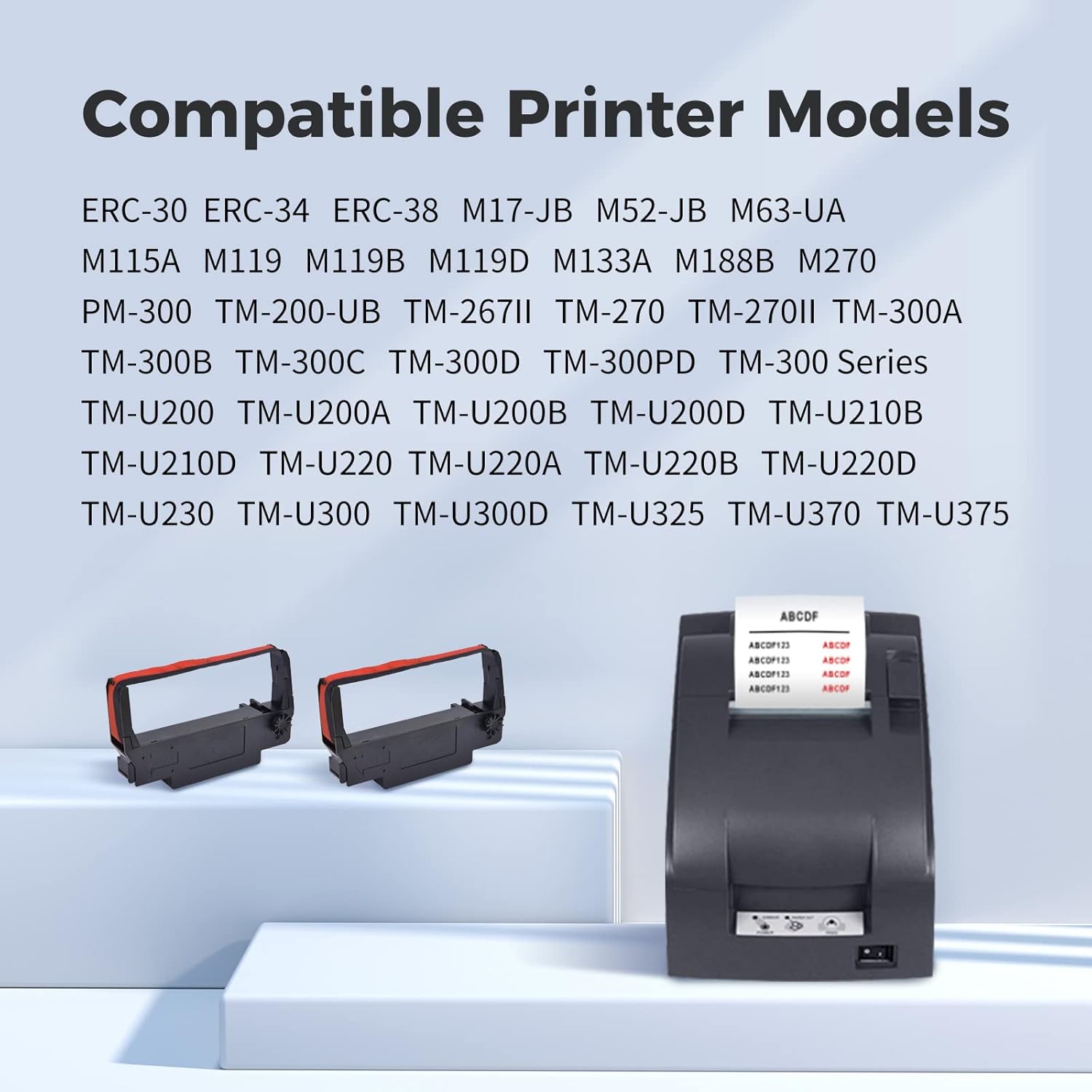
For ERC30 ERC34 ERC38 TM-U220 GRC-220BR M188B BTP-M300 · 5M
For the best printing experience, we recommend:
- Reading the installation instructions carefully before use.
- Keeping the original packaging and order information.
- Disabling automatic firmware updates on your printer.
- Avoiding repeated removal and reinsertion of cartridges, which may damage chip contacts.
Most compatibility warnings can be resolved through simple troubleshooting or a chip upgrade. If you experience any issues, please contact customer support immediately — we are here to help.
Common Issues & Troubleshooting for Compatible Cartridges
1. Cartridge Not Recognized or Incompatible Cartridge
Common error messages:
- “Cartridge Not Recognized”
- “Supply Problem”
- “Incompatible Cartridge”
- “Used or Counterfeit Cartridge Detected”
Possible causes:
- The printer firmware was automatically updated (especially HP printers).
- The chip version is incompatible with the latest printer firmware.
- The chip is not properly connected or installed.
Solutions:
- Remove and reinstall the cartridge carefully.
- Power off the printer for 2–3 minutes, then restart it.
- Make sure all protective seals, tapes, and covers are completely removed.
- If prompted, press “OK,” “Continue,” or “Proceed” on the printer screen.
- Disable automatic firmware updates to avoid future compatibility issues.
2. Cartridge Stopped Working After Replacement
Possible cause:
Your printer may have recently installed a firmware update that blocks third-party compatible chips.
Solutions:
- Check whether automatic firmware updates are enabled.
- Disable firmware auto-updates to prevent future issues.
- Contact customer support to confirm whether an updated chip version is required.
3. Streaks, Spots, or Toner Leakage on Printed Pages
Possible causes:
- Toner powder is unevenly distributed.
- Minor vibration during shipping.
- Residual toner or debris inside the printer.
Solutions:
- Gently shake the toner cartridge horizontally 5–6 times.
- Run the printer’s built-in cleaning function.
- Check whether all protective strips have been removed.
- Clean any loose toner inside the printer and reinstall the cartridge.
4. Print Quality Difference from OEM Cartridges
Explanation:
Compatible cartridges provide excellent value for everyday printing. However, slight differences in text sharpness or color accuracy may occur compared to original OEM cartridges, especially for photo or high-precision printing.
Solutions:
- Select “High Quality” print mode in printer settings.
- Run printer calibration or color adjustment.
- Use the correct paper type settings.
- Print regularly to prevent ink drying.
5. Missing, Faded, or Drying Out Colors
Possible causes:
- The cartridge has not been used for a long period.
- Printheads are partially clogged.
- Storage conditions are too hot or dry.
Solutions:
- Run the printer’s printhead cleaning function 1–2 times.
- Print a test page to check color performance.
- Print at least once per week to maintain ink flow.
- Store unused cartridges in a sealed, cool environment away from sunlight.
6. Printer Still Shows an Error After Installation
Possible causes:
- Protective covers or sealing tape were not fully removed.
- Dirty or poor chip contact.
- Incorrect installation procedure.
Solutions:
- Verify that all protective materials have been completely removed.
- Gently clean the chip contacts with a dry, lint-free cloth.
- Reinstall the cartridge until it clicks securely into place.
- Press “Continue,” “OK,” or “Proceed” if compatibility warnings appear.
7. Actual Page Yield Lower Than Expected
Explanation:
Page yield estimates are based on industry-standard testing at approximately 5% page coverage. Actual yield may vary depending on:
- Full-page color printing.
- Photo printing.
- Frequent printhead cleaning.
- Heavy graphics or dense text printing.
As a result, different printing habits can significantly affect cartridge lifespan.
8. Toner Residue Inside the Package
Explanation:
Minor toner residue may occasionally occur due to vibration during shipping. This is uncommon and usually does not affect normal printing performance.
Solutions:
- Wipe away any loose toner with a tissue or dry cloth.
- Gently shake the toner cartridge before installation.
- Continue normal installation and printing.